
Introduction
Hey there! So you want to change your GitHub remote from HTTPS to SSH? No worries, I’ve got you covered. In this guide, I’ll walk you through the process step by step, with live code examples to make it even easier. Let’s dive in!
Why Change to SSH?
Before we get started, you might be wondering why you should bother changing your GitHub remote from HTTPS to SSH. Well, there are a few reasons:
- Convenience: SSH allows for easier authentication when pushing and pulling code.
- Faster Access: SSH connections are generally faster than HTTPS connections.
- Better Security: SSH uses public-key cryptography, providing an extra layer of security for your code.
Now that you know the benefits, let’s get into the nitty-gritty of how to make the switch.
Step 1: Generate SSH Key
The first thing you’ll need to do is generate an SSH key. Don’t worry, it’s easier than it sounds. Just follow these steps:
- Open your terminal and type
ssh-keygen -t rsa -b 4096 -C "your_email@example.com"- Press enter and you’ll be prompted to choose a location to save the key. The default location is usually fine, so just press enter again.
- Next, you’ll be prompted to enter a passphrase. This is an extra layer of security, but you can leave it blank if you prefer.
- Finally, you’ll see some output confirming that your key has been generated. Congrats!
Step 2: Add SSH Key to GitHub
Now that you’ve generated your SSH key, it’s time to add it to your GitHub account. Here’s how:
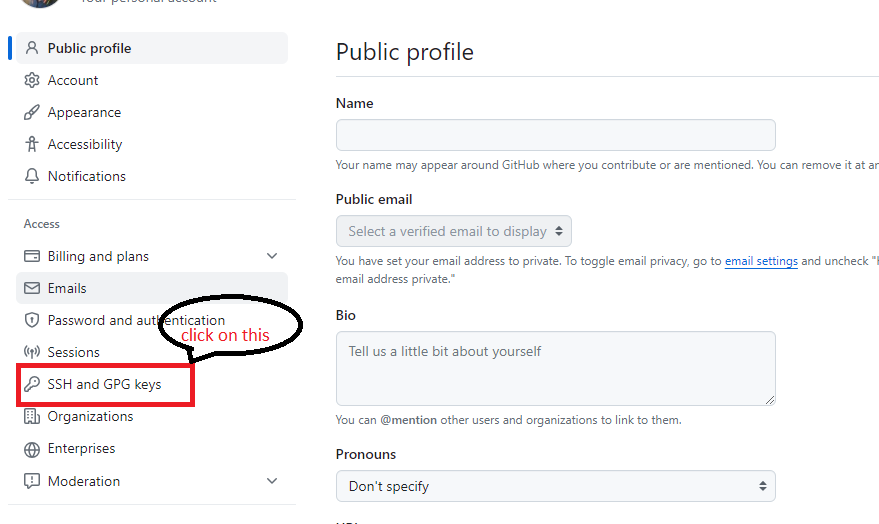
- Open your GitHub account settings.
- Click on “SSH and GPG keys” in the left-hand sidebar.
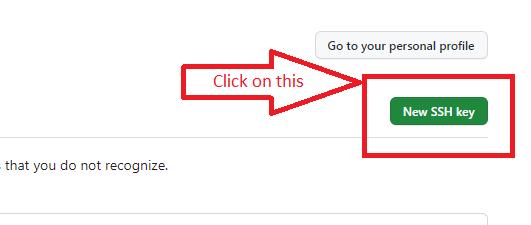
- Click on the “New SSH key” button.
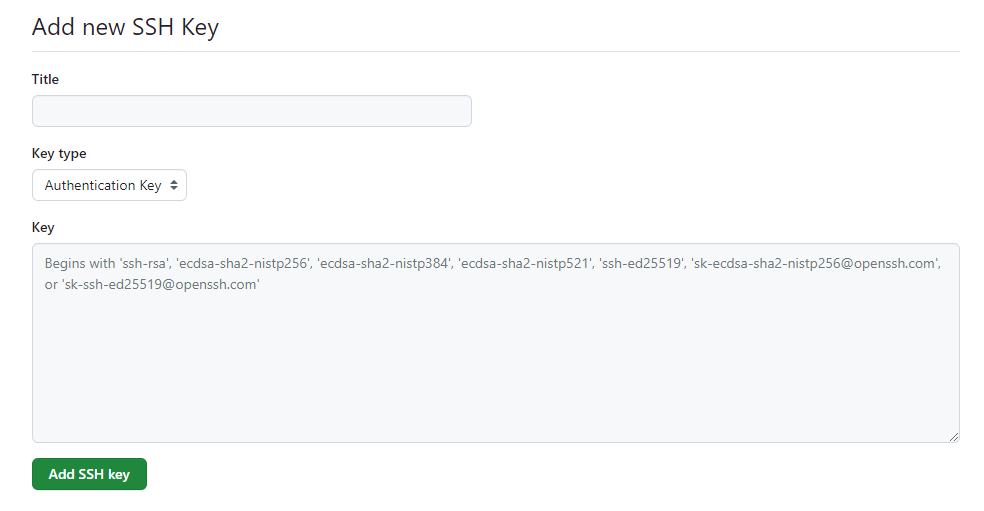
- Give your key a title (e.g., “My SSH Key”) and paste the contents of your public key file (usually located at
~/.ssh/id_rsa.pub) into the “Key” field. - Click “Add SSH key” and you’re done!
Step 3: Change Remote URL
With your SSH key all set up, it’s time to change your remote URL. Don’t worry, it’s just a couple of simple commands. Here’s what you need to do:
- Open your terminal and navigate to your project directory.
- Type
git remote set-url origin git@github.com:username/repo.git, replacingusernamewith your GitHub username andrepowith the name of your repository. - Hit enter and you’re good to go!
Conclusion
And there you have it! You’ve successfully changed your GitHub remote from HTTPS to SSH. Now you can enjoy the convenience, speed, and security that SSH provides. Happy coding!
